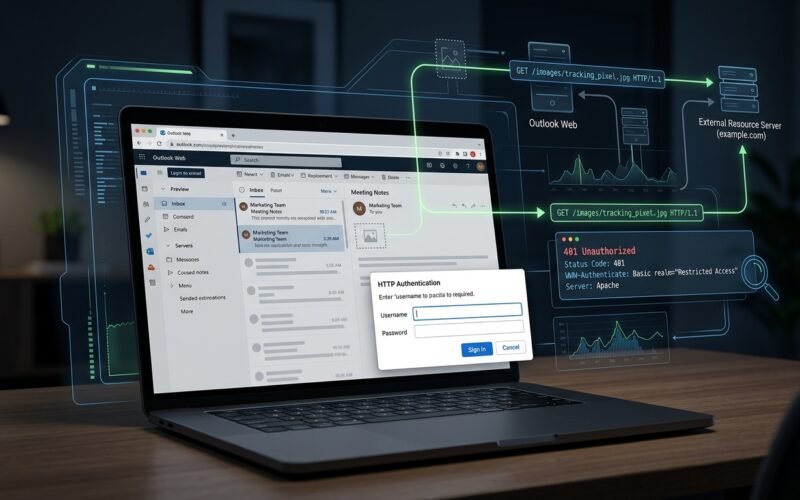
A few days ago, while reading an email in Outlook Web, an unexpected Outlook authentication prompt suddenly appeared in my browser asking for a username and password.
The strange part was that I had not opened any login page.
The dialog showed:
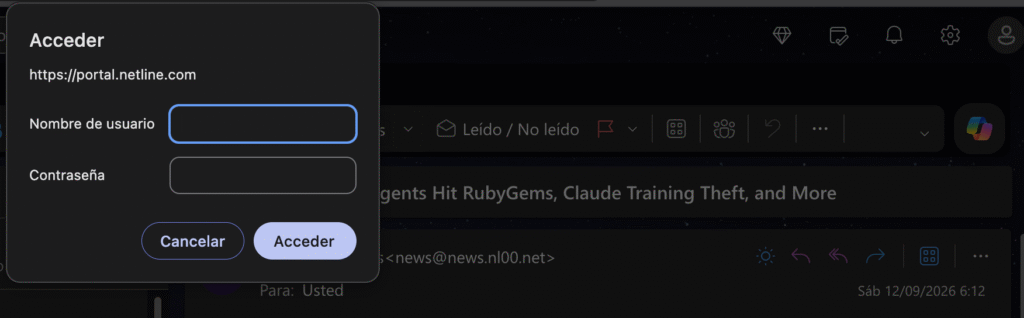
My first reaction was simple:
Why is a website I haven’t opened asking me for credentials?
Instead of entering anything, I cancelled the prompt and started investigating.
The first rule: never enter credentials blindly
Browser authentication dialogs can look trustworthy because they are generated by the browser itself instead of being part of the website.
However, the important information is the domain requesting authentication.
In this case it was:
portal.netline.comIt was not:
outlook.com
login.microsoftonline.com
microsoft.com
Therefore, entering my Microsoft credentials would have sent them to a completely different server.
This is an important phishing lesson:
A browser-generated authentication dialog does not automatically mean the request is legitimate.
Always verify which domain is requesting the credentials.
Investigating with Chrome/Brave DevTools
Since the popup appeared while reading an email, I opened Developer Tools and went to:
NetworkThen I filtered the requests using:
netlineSeveral requests appeared.
One of them immediately caught my attention:
https://portal.netline.com/revresp/images/rssnsltr/177908.1787939763.hackernews_cropped.pngThe server response was:
401 Unauthorized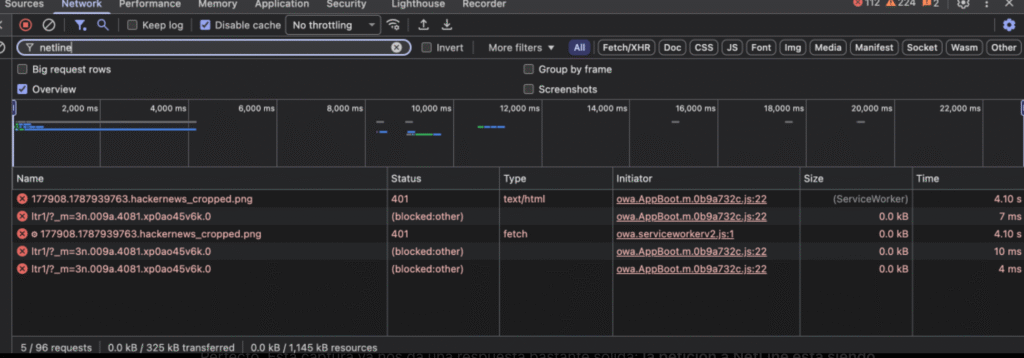
Even more interestingly, the resource was supposed to be a PNG image.
The Network panel showed something similar to:
Request Method: GET
Status Code: 401 Unauthorized
Referrer: https://outlook.live.com/
At this point, the origin of the strange popup became much clearer.
What triggered the Outlook authentication prompt?
The Outlook authentication prompt was triggered after the email attempted to load an external image hosted on another server.
When Outlook rendered the HTML email, the browser automatically requested that external resource. The remote server responded with an HTTP 401 Unauthorized status and requested authentication.
The flow looked approximately like this:
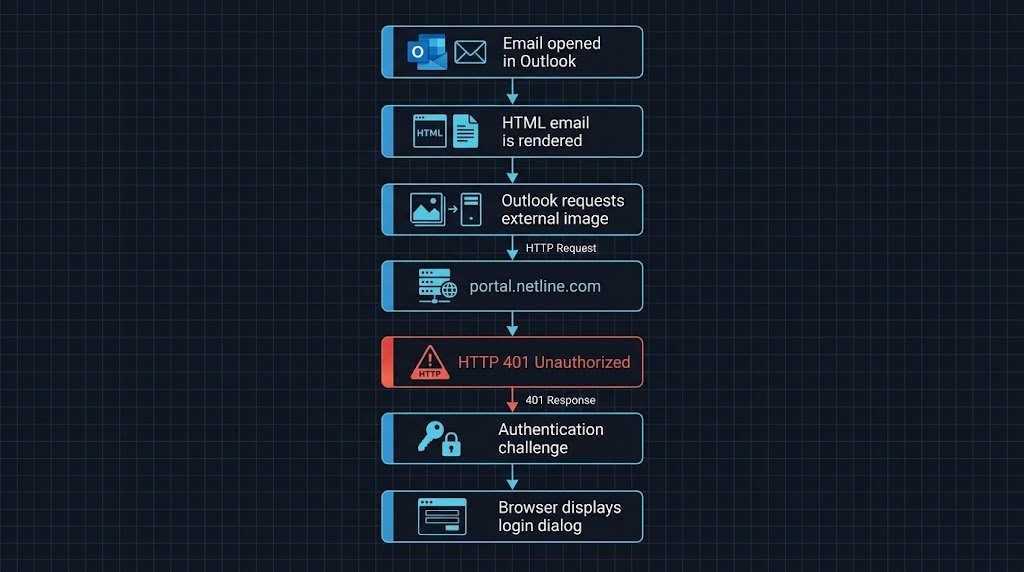
I had never intentionally navigated to NetLine.
The request happened automatically because the email contained an external resource.
What does HTTP 401 mean?
According to the MDN documentation, HTTP 401 Unauthorized indicates that the request lacks valid authentication credentials for the requested resource.
A server can also return a header such as:
WWW-Authenticate: Basic realm="Restricted"This tells the browser that the resource requires authentication.
The browser may then display its native username/password dialog where this mechanism is known as HTTP Basic Authentication.
It is an old but still widely supported authentication mechanism.
Why is this interesting from a security perspective?
Imagine a malicious email containing:
<img src="https://attacker.example/resource.png">When the email client loads that image, the attacker’s server responds:
HTTP/1.1 401 Unauthorized
WWW-Authenticate: Basic realm="Microsoft Account"
Depending on the browser and email client behavior, the user could potentially see an authentication prompt.
A less technical user might think:
Outlook logged me out.
and enter:
email@example.com
MyMicrosoftPassword123
But those credentials would not necessarily be going to Microsoft.
They would be sent to the server that issued the authentication challenge.
In other words:
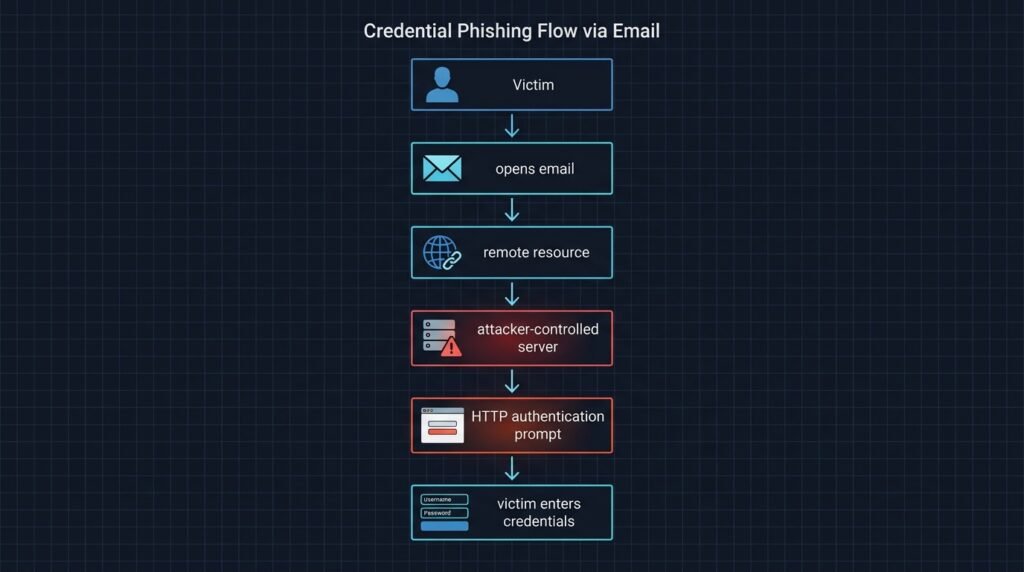
This creates an interesting opportunity for credential phishing.
Is HTTP Basic Authentication itself a vulnerability?
No.
HTTP authentication is a legitimate web feature.
Likewise, an external resource returning 401 does not automatically indicate malicious activity. There are several possible explanations for this:
- Authentication accidentally enabled on a directory;
- Misconfigured web server;
- Expired campaign assets;
- Restricted marketing resources;
- CDN configuration problems;
- Broken tracking infrastructure.
In my case, the affected resource appeared to belong to infrastructure used by the newsletter being displayed.
Therefore, there is currently no evidence that the popup itself was part of an attack. However, the behavior demonstrates something valuable: browser-generated dialogs can still create convincing credential phishing scenarios.
Native dialogs can increase trust
Traditional phishing usually relies on fake HTML login pages.
For example:
<form>
    <input placeholder="Microsoft email">
    <input type="password">
</form>
Security-aware users often recognize poorly designed phishing forms.
A browser authentication dialog is different, it is rendered directly by the browser.
That can make it appear more trustworthy. The attacker doesn’t need to perfectly reproduce Microsoft’s login interface, the browser does part of the work.
External content in email is more powerful than it looks
HTML emails frequently load external resources such as: tracking pixels, marketing images, redirectors, analytics endpoints and campaign tracking URLs.
These requests can reveal information such as:
- that the email was opened;
- approximate IP address;
- browser characteristics;
- time of interaction;
- campaign identifiers.
For this reason, many privacy-focused email clients block external images by default.
Using DevTools to investigate suspicious email behavior
If something unusual happens while reading an email in a web browser, DevTools can be extremely useful.
Open:
Developer Tools → NetworkEnable:
Preserve logand reproduce the behavior.
Then inspect:
Request URL
Status Code
Initiator
Referer
Response Headers
The Initiator field is particularly useful because it helps identify what triggered the request.
In my investigation, Outlook’s own JavaScript/service worker appeared as the initiator because Outlook was rendering the email content.
That helped rule out other possibilities such as another browser tab.
What should users do when they see an unexpected authentication prompt?
Never immediately enter your credentials. First check the domain.
For example:
login.microsoftonline.comcould reasonably be associated with Microsoft authentication. But:
random-domain.exampleshould immediately raise suspicion. If the prompt appears unexpectedly:
- Cancel it.
- Check the requesting domain.
- Inspect the page or email that triggered it.
- Open Developer Tools if necessary.
- Never reuse credentials on unrelated domains.
Final thoughts
What initially looked like a random browser popup turned into a useful example of how web technologies, email tracking and authentication mechanisms interact. The interesting part wasn’t necessarily a vulnerability.
An email can cause the browser to interact with multiple external systems without the user consciously visiting those websites.
If one of those systems requests authentication, the resulting dialog can appear unexpectedly and that creates an important security lesson:
Never trust a credential prompt simply because the browser generated it. Trust the domain requesting the credentials.